How I over-engineered my Home Kubernetes Cluster: part 1
Introduction
In this series I will talk about how I over-engineered my Kubernetes cluster. I used to run some services on a single Raspberry Pi 4, but I was not very confident about the reliability or security of the setup. For this reason, and out of pure interest in Kubernetes, I decided to move to a Kubernetes cluster.
Currently I have 2 Raspberry Pi (4 and 5) running a K3s cluster, with full support for metrics and alerts. I will talk about the setup of the cluster, the services I run on it, and the monitoring and alerting setup. My goal with this post is to share my experience and maybe help someone who is thinking about setting up a similar cluster. I have spent a lot of time trying to figure out many things, so I hope this post will save you some time or, at the very least, be an interesting read.
Everything I talk about in this series is available in this repository.
Contents
In the next post…
4. Monitoring and alerting
5. Services
6. Backups and disaster recovery
As I mentioned, I decided to create a 2-node Kubernetes cluster using 2 Raspberry Pi. Given this starting point I had to make some decisions about the setup of the cluster. First of all, I decided from the very start to go with K3s, a lightweight Kubernetes distribution, which is a perfect fit. Secondly, I had to make this cluster accessible to the internet. For that, I wanted to avoid port-fowarding my router and exposing my IP address to the internet, so I decided to set-up a proxy server in the cloud. In order to avoid vendor lock-in, I decided to do it from scratch. I created a Wireguard VPN which connected the nodes to the proxy server. This way, I could access the cluster from anywhere, and I could also expose services to the internet without exposing my IP address. At this point we have 3 components: the proxy server and the 2 nodes, and the nodes are connected to the proxy server via a Wireguard tunnel.
Setting up the proxy server
Now let’s talk about the proxy server. The idea is very simple, we want to proxy HTTP, HTTPS and Kubernetes API connections. To create this proxy I used Traefik, and set it up to load-balance requests to the nodes for HTTP and HTTPS, and to direct requests to the Kubernetes API to the master node. The HTTPS and Kubernetes API proxies have to enable TLS passthrough, so that we are able to have TLS termination in the nodes rather than in the proxy. It is also important to enable the proxy protocol in Traefik, so we can get the real IP of the client in the logs while keeping TLS passthrough. You can find the specific configuration I used to do this in the repository I link to at the start of the post, inside of the proxy folder.
As an additional (and totally unneeded) flex, I also set up a proxy using mitmproxy so that I am able to send requests from the Kubernetes nodes to update the domain’s IP in the DNS with the proxy’s IP rather than the actual node’s IP. Of course this is totally unnecessary since my VPS does not have a dynamic IP, but it was a fun exercise. It is very important to not expose the mitmproxy to the internet, as bad actors could use it for malicious purposes. To avoid this, I just blocked the port in the firewall in my cloud provider dashboard, and that way it is only accessible through the tunnel from the nodes.
That’s all the setup for the proxy server. Now we have a way to access the cluster from anywhere, and we can expose services to the internet without exposing our IP address.
Setting up the nodes
The setup of the nodes is also pretty straight-forward. I just installed K3s on the master node with a few important configurations:
--tls-san bunetz.dev: This is the domain I use to access the cluster remotely, so I have to add it as a SAN in the TLS certificate.--tls-san 192.168.1.4: This is the local IP (which I set statically) of the master node, so I can access the cluster from the local network.--disable=traefik: Traefik is included in K3s by default, but I don’t want to use it for reasons I will explain in the next section.--node-ip=10.1.10.1: This is the local IP the node will advertise to the cluster. I set to use the Wireguard IP, so that the nodes communicate with each other through the tunnel.--flannel-iface=k8s-tunnel: Flannel is in charge of redirecting traffic between nodes in K3s by default. With this flag we tell Flannel to use the Wireguard interface for this purpose so that all internal cluster traffic is end to end encrypted.
Of course, during this setup we will need to create the proper Wireguard configuration in the nodes to be able to communicate between them and to the proxy server. For this configuration it is important to activate keep alives in the Wireguard configuration in order to be able to communicate with the proxy server even if the nodes are behind a NAT (which is the case for most home routers) without having to set up port forwarding. A more detailed explanation of how to create and set up the Wireguard configuration can be found in the repository which I linked to at the start of the post.
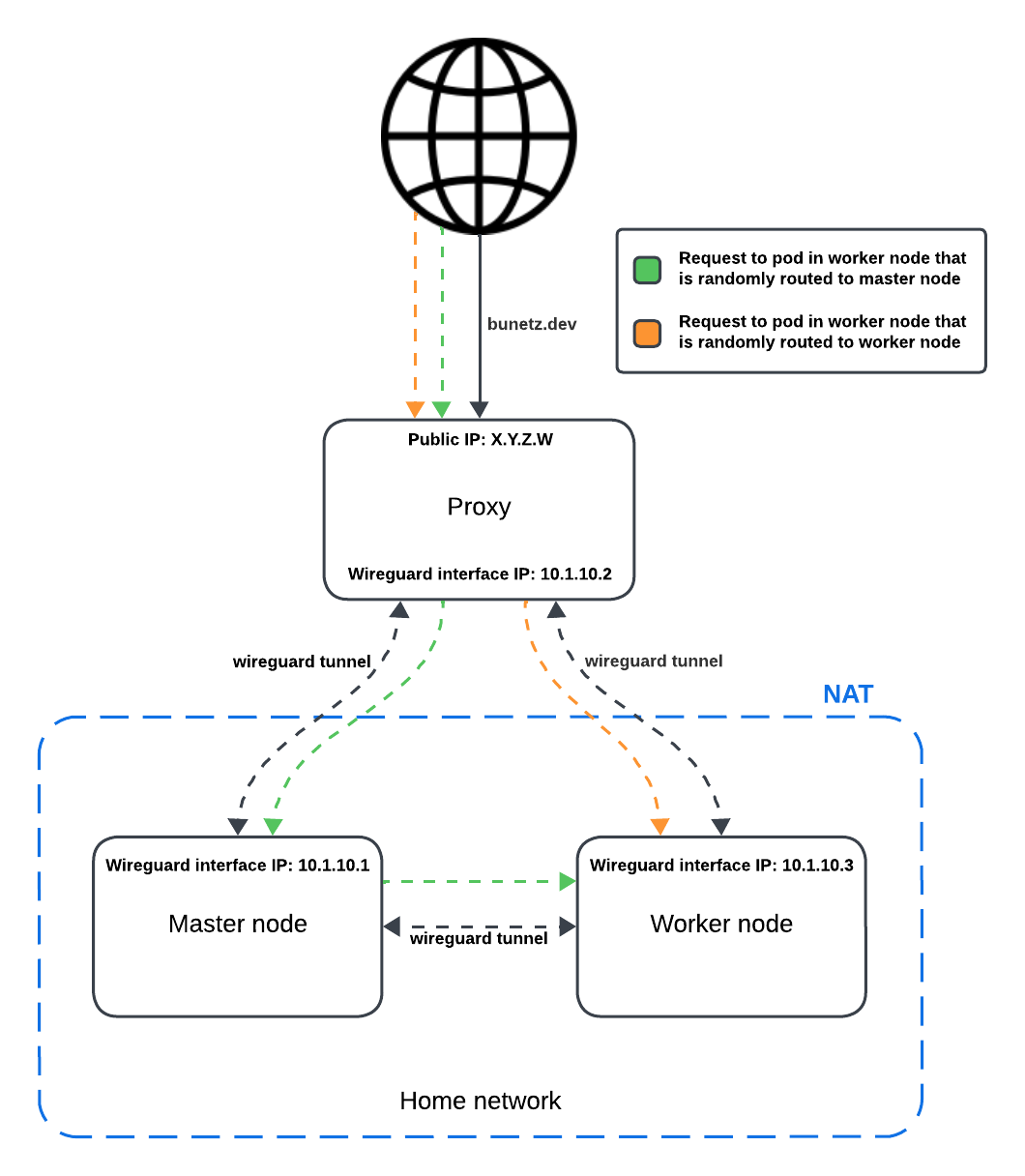
At this point we have a cluster looking like the one in the diagram above. We have a proxy server in the cloud which is connected to the nodes with a Wireguard tunnel to each, and the nodes are also connected between each other with another Wireguard tunnel. Only the proxy server is exposed to the internet, and it load-balances requests to the nodes.
The ingress is one of the key aspects of the setup. First of all, from the very start I decided it was very important to me to be able to see real client IPs in order to be more aware of what is going on. This way I can have alerts if some particular IP is calling the cluster a lot in an effort to brute-force some password, for example. Another important things for me was to have TLS encrypted traffic all the way to the nodes, so if someone could gain access to the proxy, he would still not be able to see my traffic which might contain passwords or other sensitive information.
For these reasons, I found I needed to disable Traefik, since TLS termination in Traefik happens in the end node. With Traefik, requests which arrived to one node and were forwarded to the other, were losing their forwarded IP header because Flannel, which is in charge of redirecting traffic between nodes, does not support the proxy protocol. Most likely, there is a way to replace Flannel with another CNI plugin which does support it or to have TLS termination as soon as traffic reaches any node, but since I struggled to find any documentation and I had experience with Nginx, I decided to go with it.
Main ingress setup
To install ingress-nginx as the cluster ingress I used Helm and applied some configurations:
enable-modsecurity: "true": I enabled ModSecurity to have a Web Application Firewall (WAF) in front of my services. It blocks weird requests which most likely come from bots that try to find credentials or vulnerabilities in the services, seems like people don’t have a lot to do these days and like to do these things instead of just getting a job.use-proxy-protocol: "true": I enabled the proxy protocol in Nginx so that I can get the real client IP in the logs. We don’t need to worry about clients setting a fake IP in the header, since the nodes are not exposed to the internet and only the proxy server can send requests to the ingress.allow-snippet-annotations: "true": to enable the use of annotations in the ingress resources. This will be useful to set per-ingress configurations like the WAF rules or rate limits.log-format-escape-json: "true": to escape the JSON in the logs so that we can parse them easily. And the following log format so that we can have a structured log:
log-format-upstream: '{"time": "$time_iso8601", "remote_address": "$remote_addr", "request": "$request", "status": $status, "http_user_agent": "$http_user_agent",
    "request_length": $request_length, "body_bytes_sent": "$body_bytes_sent", "http_referrer": "$http_referer", "request_time": $request_time, "host": "$host",
    "request_id": "$req_id", "x_forwarded_for": "$proxy_add_x_forwarded_for", "remote_user": "$remote_user", "ingress_namespace": "$namespace", "path": "$uri",
    "request_proto": "$server_protocol", "method": "$request_method", "request_query": "$args", "service_name": "$service_name", "service_port": "$service_port",
    "upstream_addr": "$upstream_addr","ingress_name": "$ingress_name"}'
With these setup we achieve multiple things: we have a WAF in front of our services, we have real client IPs in the logs, and we have structured logs which we can parse easily. This will later on allow us to parse these logs, generate metrics out of them, enrich them with geo-location data, and create alerts based on them. But this part will be explain in a future post.
In my first version, I had created a custom internal services which would query IPs to get their location using MaxMind API. Then, I added a lua script which was triggered on every request that would call this internal service to get geolocation information so it could add it to the logs. The problem with this approach (other than being a totally over-engineered solution) was that the request to get the IP was happening sequentially, so it was blocking the request until it got the location. This was not a big deal since my cluster is very small and I don’t have a lot of traffic, but it was not nice. For this reason, I decided to not use this approach and to instead get the geolocation information during log parsing in Loki, which already has support for this. Who doesn’t love a geomap dashboard in grafana to see where the traffic is coming from? If you are reading this from the original website, you are probably on my map, say hi!
Ingress resources
Each service has its own ingress resource, which is a really simple way to expose services to the internet.
In order to have TLS certificates for each ingress, so client can use HTTPS and have end-to-end encryption, I also used a really straight-forward approach.
I just used the cert-manager Kubernetes operator to handle that for me.
Almost no configuration, just set you email, a few easy thing and it’s all handled automatically as long as I add a cert-manager.io/cluster-issuer annotation to the ingress resource.
To set up an ingress for a service its really simple, let’s look at the configuration of the ingress for these website:
apiVersion: networking.k8s.io/v1
kind: Ingress
metadata:
  name: bunetz
  namespace: bunetz
  annotations:
    cert-manager.io/cluster-issuer: letsencrypt-prod
    nginx.ingress.kubernetes.io/server-snippet: |
      location "/metrics" {
          deny all;
          return 403;
        }
    nginx.ingress.kubernetes.io/limit-rps: "100"
    nginx.ingress.kubernetes.io/limit-rpm: "500"
    nginx.ingress.kubernetes.io/limit-burst-multiplier: "5"
    nginx.ingress.kubernetes.io/from-to-www-redirect: "true"
spec:
  ingressClassName: nginx
  tls:
  - hosts:
    - bunetz.dev
    - www.bunetz.dev
    secretName: bunetz-tls
  rules:
  - host: bunetz.dev
    http:
      paths:
      - path: /
        pathType: Prefix
        backend:
          service:
            name: bunetz
            port:
              name: http-port
Just a few annotations to set the rate limits (which are by default per IP), one to make sure www is redirected to the non-www version, and another to deny access to the metrics endpoint (which doesn’t exist in this case, but might in the future). Then we just set the ingress class, the hosts we want a TLS certificate for, and the service we want to expose.
In other ingresses, we might also need to apply some WAF rules if something is incorrectly blocked. For that its also important to set the error log level to info (using error-log-level: "info" in ingress-nginx configmap), so it will log which specific WAF rules are being triggered so we can whitelist them easily. An example of this rules is the one I have for immich, which disables a few rules which were causing trouble:
nginx.ingress.kubernetes.io/modsecurity-snippet: |
      SecRuleRemoveById 920420
      SecRuleRemoveById 911100
      SecRuleRemoveById 921110
In the monitoring and alerting part of this series I will explain how to easily find which rule is being triggered so it can be whitelisted, which will be done by parsing modsecurity logs and displaying them in an easy to understand table in Grafana.
There are also other snippets I use in different services like nginx.ingress.kubernetes.io/proxy-body-size: 200M to increase the body size limit on immich or to set up basic auth for services which don’t have any by default, but those are pretty straight forward and you can find them on my repository. It’s really useful to check the annotations docs to see all you can do.
Storage was also a pretty complicated thing to set up. I needed to have persistent storage for some of the services, and I didn’t want to spend money on some external S3-like service or use the device drive directly since it would tie pods to specific nodes rather than have them schedule wherever there is capacity. For this reasons I decided to use a distributed storage solution, and I went with Longhorn.
The Longhorn configuration is really simple, I just pulled the Helm chart, changed the default replica amount to 2 (since I just have 2 nodes) and that’s pretty much it. I also set up a way to backup the data to an Azure Blob Storage, but I will talk about that in the backups and disaster recovery section.
The most annoying thing I found when setting up longhorn is its dependencies. First of all you need open-iscsi installed, which is quite simple and you can just follow the longhorn guide. For my specific case, the most annoying and less documented thing that I encountered is the need to install the linux-headers and linux-modules-extra for every new linux kernel upgrade. If for some reason your device restarts booting into a new kernel without this packages, Longhorn will not work and you will have to manually install them. So I set up cronjobs to keep this packages updated so that when kernel upgrades happen automatically, the system will still work. You can find the script I used in the repository I linked to at the start of the post.
If you configured everything correctly, the isci daemon should be running, which you can check with this command: systemctl status iscsid.
Once you have everything set up, it’s just a matter of creating a persistent volume claim of Longhorn class and a persistent volume should be automatically created for you. An example of this is the following PVC for my Postgres database:
kind: PersistentVolumeClaim
apiVersion: v1
metadata:
  name: postgres-pv-claim
  namespace: postgres
spec:
  storageClassName: longhorn
  accessModes:
    - ReadWriteOnce
  resources:
    requests:
      storage: 5Gi
Now you can just use it as a volume in a deployment like this:
volumes:
- name: postgredb
    persistentVolumeClaim:
    claimName: postgres-pv-claim
Conclusion
Thank you so much for reading my post. I hope you found it interesting and that it will help you in your journey to set up your own Kubernetes cluster which allows you to take control of your own data and services. I would love to hear your feedback and suggestions, as I’m sure that plenty of things can be improved in my setup. If you have any questions, suggestions or comments, feel free to reach out to me on Reddit or whatever platform I list on the about me section of my webpage.
See you in the next post!